Como usar OldRoll: Tutorial passo a passo de um iniciante
Aprender a usar OldRoll leva apenas alguns minutos, mas um punhado de pequenas técnicas fazem uma grande diferença em seus resultados. Este tutorial passo-a-passo caminha através de todo o processo, desde a abertura do aplicativo pela primeira vez até salvar seu estilo vintage acabado tiro.
Passo 1: Abra o aplicativo e selecione uma câmera
Depois de lançar OldRoll, você pousa na tela de seleção da câmera, onde cada ícone representa um filme distinto ou estilo de câmera descartável. Conseqüentemente, tocar em algumas opções antes de fotografar ajuda você a entender como grãos, cores e vazamentos de luz diferem entre estilos. Iniciantes muitas vezes começam com uma câmera livre padrão para obter uma sensação para a interface.
Passo 2: Molde seu tiro
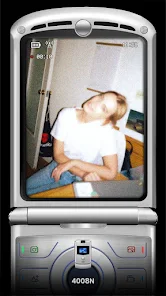
Uma vez que você selecionar uma câmera, o visor ao vivo mostra uma visualização aproximada de como o efeito final será. Portanto, tome um momento para considerar a composição antes de bater no obturador, já que a maioria dos efeitos vintage se aplicam automaticamente sem mais ajustes. Cenas simples e desbotadas muitas vezes fotografam melhor com o grão do OldRoll e efeitos leves.
Passo 3: Capture a foto
Toque no botão do obturador para capturar seu tiro. Ao contrário das câmeras de smartphone padrão, OldRoll pode introduzir um breve atraso de processamento, enquanto ele aplica grãos e classificação de cores. Como resultado, evite mover o telefone imediatamente após tocar no obturador para evitar o borrão indesejado durante esta etapa de processamento.
Passo 4: Reveja e recupere se necessário
Depois de capturar, OldRoll exibe o resultado processado para que você possa decidir se deve mantê-lo ou retomar o tiro. Além disso, uma vez que cada estilo de câmera introduz ligeira randomização, retomar a mesma cena pode produzir um padrão de grãos visivelmente diferente ou colocação de vazamento de luz. Portanto, não hesite em tentar duas vezes se o primeiro resultado não corresponder à sua visão.
Passo 5: Importar fotos existentes
Se preferir editar fotos existentes em vez de fotografar fotos frescas, use a opção de importação para aplicar os efeitos do OldRoll às imagens já na sua galeria. Consequentemente, isso funciona bem para adicionar um look vintage para viajar fotos ou imagens mais antigas que você quer revisitar com uma nova estética.
Passo 6: Salve e exporte sua foto
Uma vez satisfeito com o resultado, toque em salvar para enviar a foto finalizada para a galeria do seu dispositivo. Além disso, alguns estilos de câmera oferecem configurações de exportação opcionais, como resolução ou alternâncias de marca d'água, então verifique estes antes de salvar se você quiser o controle máximo sobre o arquivo final.
Passo 7: Explore mais estilos de câmera
Uma vez que você está confortável com o básico, ramificar e testar estilos de câmera adicionais para construir um kit de ferramentas criativas mais amplo. O nosso guia para o melhores câmeras em OldRoll destaques que estilos se adaptam a diferentes tipos de iluminação e assunto. Portanto, a rotação entre alguns favoritos mantém seus resultados se sentindo variados em vez de repetitivos.
Se você eventualmente quiser acesso à biblioteca de câmeras completa, nosso Guia OldRoll Premium explica o que o nível pago desbloqueia, enquanto nosso guia sobre desbloqueio de câmeras grátis cobre formas legítimas de expandir sua biblioteca sem pagar.
Erros Comuns Iniciantes Para Evitar
Novos usuários muitas vezes filmam cenas ocupadas e desordenadas que competem com os efeitos de grão e leve fuga, o que pode fazer com que as fotos se sintam confusas ao invés de nostálgicas. Além disso, ignorar o breve atraso de processamento após tocar no obturador às vezes resulta em desfoque de movimento indesejado. Como resultado, desacelerar ligeiramente e enquadrar composições simples normalmente produz resultados mais fortes do que fotografar rapidamente.
Construindo uma Rotina de Edição Simples
Muitos iniciantes obter os melhores resultados, escolhendo um ou dois estilos de câmera favoritos e ficar com eles por um tempo, em vez de mudar constantemente. Conseqüentemente, esta consistência ajuda você a aprender exatamente como cada estilo lida com iluminação diferente, desde cenas ao ar livre brilhantes até configurações interiores escuras. Além disso, manter uma rotina simples faz com que a edição se sinta menos esmagadora como você ficar confortável com os controles básicos do aplicativo.
Tiro em diferentes condições de iluminação
Os efeitos de estilo vintage muitas vezes parecem mais convincentes em iluminação natural ou de hora dourada, onde os tons quentes já complementam a classificação de cores inspirada em filmes. Em contraste, o sol duro do meio-dia ou a iluminação interior escura podem às vezes lutar contra os efeitos de grãos e vinhetas. Portanto, experimentar diferentes horários do dia ajuda você a descobrir quais as condições de iluminação mais adequadas aos seus estilos de câmera favoritos.
Perguntas Mais Frequentes
Preciso de experiência fotográfica para usar o OldRoll de forma eficaz?
Não, o aplicativo é projetado para usuários casuais, e seus efeitos automáticos exigem nenhuma habilidade manual de edição para produzir bons resultados.
Posso desfazer um tiro depois de o salvar?
Uma vez salvo na sua galeria, você não pode desfazer o efeito dentro OldRoll, embora você sempre pode editar ou excluir a foto através do aplicativo galeria do seu dispositivo.
Por que minha foto parece diferente cada vez com a mesma câmera?
OldRoll randomiza a colocação de grãos e vazamentos de luz ligeiramente com cada tiro para imitar a imprevisibilidade do filme real.
Há um limite para quantas fotos posso tirar?
OldRoll normalmente não limita o número de tiros que você pode tomar, uma vez que o processamento acontece localmente em seu dispositivo.
Posso usar OldRoll para vídeos e fotos?
O foco principal do OldRoll são os efeitos da foto, então verifique a lista de recursos atuais do aplicativo para qualquer funcionalidade de vídeo disponível.

